The Tool
What is SIMPLIFY?
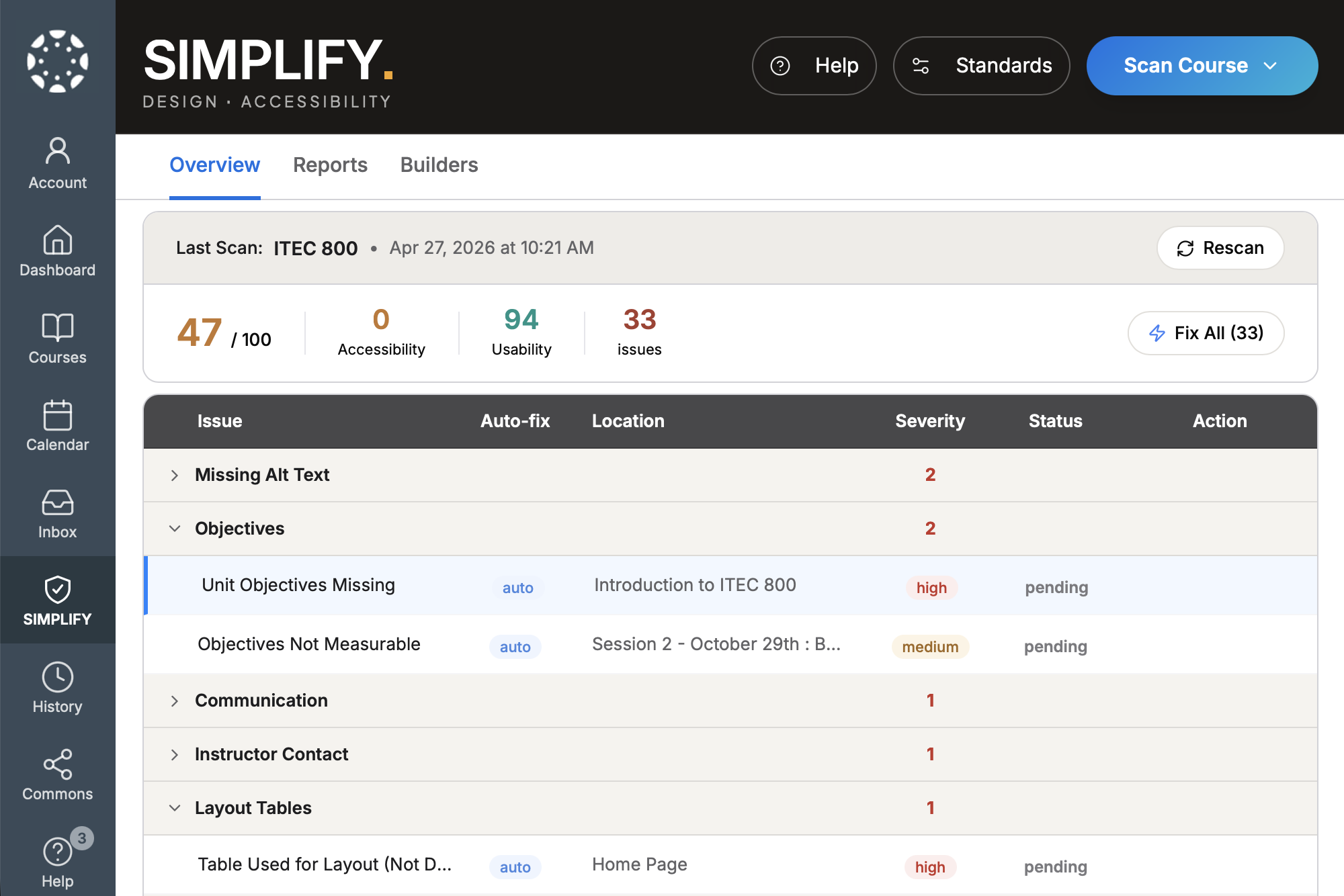
A Canvas LTI plug-in that scans course content for accessibility and usability issues, flags problems, and offers guidance, including one-click fixes.
ITEC 825 · Usability Testing · Spring 2026
A Canvas plug-in for course accessibility, tested with the people who would actually use it.
Jared Gochuico · Ayhorng Heng · Melissa Lee · Sophie Meryash
The Tool
A Canvas LTI plug-in that scans course content for accessibility and usability issues, flags problems, and offers guidance, including one-click fixes.
Why we are testing
How we are testing
Three independent reviews against Nielsen's heuristics. Two by team members on the NN/g worksheet, one by Claude Code as a third lens.
Nine participants across three user groups. Canvas sandbox. Think-aloud. SEQ after each task, SUS at the end. One pilot dry run, plus a calibration session before independent sessions to align observation.
Figure 01 · From the Test Plan
| Task | Description | Related Research Question(s) |
|---|---|---|
| 1 | Initiate a course scan | Can users successfully initiate a course scan without assistance? |
| 2 | Interpret scan results | Do users understand scan results and required actions? |
| 3 | Navigate issue types | Can users navigate issue types and system organization? |
| 4 | Locate and apply a fix | Can users locate and apply recommended fixes? |
| 5 | Use an AI-generated fix | Do users trust AI suggestions? Is the language clear and actionable? |
| 6 | Publish changes | Can users navigate key controls (scan, fix, publish)? |
| 7 | Undo changes | Do users experience confusion or need for recovery actions? |
Figure 04 · From the Test Plan
Note. Observer role is used only during the dry run; subsequent sessions have no observer.
Section 02
What we collect, and how we collect it.
Overview
Instrument 01 of 04
Asked after every task. "Overall, how difficult or easy was this task?"
Modified from the validated 7-point version (Sauro & Dumas, 2009) to a 5-point scale to reduce participant cognitive load. Results will not be benchmarked against the published 7-point norms.
Instrument 02 of 04
Used unmodified at the end of every session. Ten questions, scored 1 (strongly disagree) to 5 (strongly agree).
"I think that I would like to use this system frequently."
"I found the system unnecessarily complex."
"I thought the system was easy to use."
…and seven more (Brooke, 1996). Kept as-is for established benchmarking.
Instrument 03 of 04
A structured form the moderator fills in real time, one per task. Here it is for Task 1.
| Task | Task 1: Initiate a Course Scan | ||
|---|---|---|---|
| Scenario | "You have just installed SIMPLIFY in your Canvas course. You want to check for accessibility issues for the course ITEC 800. Please do that." | ||
| Outcome | SEQ (1–5) | Observations / Notes | |
|
✓ Success ☐ Fail |
4 |
Hesitated ~8s before clicking Scan Course "oh there it is" when she found the button Scrolled past the dashboard once |
|
Instrument 04 of 04
Sessions are recorded over Zoom with auto-transcription. The transcript becomes a second pass at every session; the moderator's notes are the first.
From the field · what worked
From the field · what concerned them
Section 03
What participants receive, sign, and read, from recruitment through the session itself.
Pre-session
Screens for participants who match our user groups: experience with Canvas and course design.
See Appendix A
Pre-session
Confirms participants understand the session is recorded, that data will be anonymized, and that they can withdraw at any time.
Protects the prototype, since SIMPLIFY is still in development. Participants agree not to share screenshots or details outside the session.
Signed before the session begins.
During the session
Each task is framed as a realistic faculty workflow inside Canvas, not a UI checklist.
| Task | Scenario |
|---|---|
| 1 | Initiate a course scan |
| 2 | Interpret scan results |
| 3 | Navigate issue types |
| 4 | Locate and apply a fix |
| 5 | Use an AI-generated fix |
| 6 | Publish changes |
| 7 | Undo changes |
Section 05
A practice run of one task, end to end, so you can see how the materials come together in a real session.
Demo · Setup
Demo · Live
Initiate a course scan. We will moderate this in real time.